
Case study
Smart locks · Information architecture
Godrej: Unifying Three Smart-Lock Apps
Information architecture for GLAFS, one app meant to replace Godrej’s separate smart-lock apps and to grow into gateways, video door phones and the devices planned after them. The IA wireflow is the centre of this case study; the UI shown is exploration.
Product
GLAFS unified app (name used in the IA and scope deck)
Platform
Mobile app
Covered here
Information architecture, research synthesis, UI exploration
Stage
IA wireflow v101 and early UI; launch status not documented
IA wireflow v101 · five sections under four tabs
Before the tabs
A · Onboarding
4 flows
Welcome & sign-up
Account recovery
Phone OTP
Email OTP
Home
B · Home
7 flows
New user · device-first
Dashboard
Property & rooms
Notifications & alerts
Visitor unlock
Devices
C · Devices
29 flows
Device onboarding
Six lock models
Gateway, VDP, VDB, camera
Access methods
Users & schedules
Control pane & settings
Activity
D · Activity Trail
2 flows
Activity & logs
Report an issue
Settings
E · Settings
10 flows
Account & support
Voice assistants
System integrators
Future extensions
518
screens, sheets and states
1,044
transitions
52
flows in five sections
Left: the sections and flows of the IA wireflow (v101), coloured by the legend used throughout. Right: an early home-screen exploration.
01
The challenge
Three lock apps for one home.
Godrej’s smart locks were run from separate apps: VAVE Bedroom Locks, VAVE Door Locks and the IoT9 platform, each with its own model and interface. The product scope deck sets the goal as moving “from three apps to one operating layer”, one that can also take on gateways, video door phones and the categories planned after them.

VAVE Bedroom Locks
Standalone app, own UI

VAVE Door Locks
Standalone app, separate model

IoT9 platform
Separate ecosystem
GLAFS unified app
One operating layer
Locks
Gateways
Video door phones
Planned: cameras, sensors, lighting
VAVE Bedroom Locks
Standalone app, own UI
VAVE Door Locks
Standalone app, separate model
IoT9 platform
Separate ecosystem
GLAFS unified app
One operating layer
Locks
Gateways
Video door phones
Planned: cameras, sensors, lighting
The problem
Customers managed Godrej locks across separate apps, and their reviews blamed the software more than the hardware. The unified app needed one structure for every lock, with room for the devices planned next.
Where the fragmentation shows
Three apps, three models
The scope deck lists VAVE Bedroom and VAVE Door Locks as standalone apps with their own UI and model, and IoT9 as a separate ecosystem.
The basics, rebuilt in each app
Each legacy app has its own home, lock control panel, users and activity screens.
More devices on the way
The roadmap adds cameras, video door phones, sensors and lighting, then access control and architectural fittings.
What the IA had to hold
Many lock models
The IA names six: IoT9, IoT10, Advantis D1, D2 and R1, plus a furniture lock.
More than locks
Gateways, BLE remotes, VDP modules, video door phones (VDP), VDBs and cameras, each with its own setup.
Shared access
A lock has privileged, scheduled and one-time users, who open it with a passcode, fingerprint or RFID card.
Several homes
Users can hold more than one property, each with rooms, and switch between them.
02
Research
Reviews pointed at the software, not the hardware.
An analysis of 28 customer reviews across the three apps found that dissatisfaction came mainly from software reliability and gaps in the experience. It grouped the complaints into five pain areas. The right-hand column shows how the IA responds to each.
01
Connectivity and remote access
Unreliable Wi-Fi, Bluetooth instability, failed remote unlock, slow pairing, connection failures.
Design implication
Connection state is designed, not left to chance: offline home, out-of-range lock, stale activity and sync-failed states.
02
Visibility and notifications
Delayed notifications, missing activity history, inaccurate lock status, poor event visibility.
Design implication
Activity gets its own tab. Critical and visitor alerts sit on Home, and the device pane shows status, last sync and last event.
03
Product experience
Outdated UI, missing functionality, poor usability, weak premium perception.
Design implication
Addressed in the UI explorations (section 05) rather than the IA.
04
Access management
Fingerprint management, OTP usability, credential administration, user management.
Design implication
Users and access methods live inside each device: privileged, scheduled and one-time users; passcode, fingerprint and RFID.
05
Ecosystem and scalability
Weak integrations, poor onboarding, device migration, limited ecosystem support.
Design implication
One onboarding pattern for every device type; voice assistants, system integrators and Future Extensions under Settings.
From the “Customer Review Analysis” board. The complaint examples use the board’s own labels. Where and when the reviews were collected isn’t recorded.
The experience strategy
“Make security visible, understandable and trustworthy.” Its design principle: every decision should reduce uncertainty, increase confidence and help users act with clarity.
Four questions users should always be able to answer
Is my door secure?
Is my lock connected?
What is happening?
What should I do next?
Benchmarks reviewed
Apple Home, Google Home, Yale, August, Aqara, SmartThings and Tuya, plus twelve UX-pattern cards such as room-first navigation, a one-tap lock card and Bluetooth auto-scan. Figures quoted on those cards come from outside sources, so I haven’t used them here.
03
Information architecture
Mapping the app before designing it.
The v101 wireflow maps every screen, sheet and state of the unified app and every transition between them: 518 nodes in five sections, reached through four tabs. The decisions later in this case study come from it.
Screens, sheets, states
518 (218 · 74 · 226)
Transitions
1,044
Flows
52
Sections
5
Tabs
4
Existing apps
VAVE Bedroom, VAVE Door, IoT9
Unified platform
Shared by every device
Platform navigation
The four tabs
Device-specific
Depends on the device type or model
Broader smart home
Integrations beyond Godrej devices
Future or proposed
Planned or under review, not built
Replaces
Three legacy apps
VAVE Bedroom Locks
VAVE Door Locks
IoT9 platform
→
GLAFS unified app
Tab bar
Four tabs; onboarding comes first
Home
Devices
Activity
Settings
A · Onboarding
4 flows · before the tabs
Welcome & sign-up
Existing user recovery
Phone verification
Email verification
B · Home
7 flows · Home tab
New user · device-first
Dashboard
Property
Rooms
Notifications
Critical & visitor alerts
Visitor unlock · VDP
C · Devices
29 flows · Devices tab
Add a device
Device onboarding
Lock · IoT9
IoT10
1 screen
Advantis D1
1 screen
Advantis D2
1 screen
Advantis R1
1 screen
Furniture lock
1 screen
Gateway
VDP module
VDP
VDB
Camera
Access methods
Passcode
Fingerprint
RFID
People
Users & schedule
Privileged user
Scheduled user
One-time user
My access
Use and care
Device control pane
Lock settings
Accessories
BLE remote
Hardware
Firmware
Statistics
Device manual
Maintenance
D · Activity Trail
2 flows · Activity tab
Activity & logs
Sync states, filters, export
Activity investigation
Report an issue from an event
E · Settings
10 flows · Settings tab
Account
Permissions
Support
Help Center
Contact Support
About GLAFS
Terms & Policies
Voice assistants
Alexa, Google Home
System integrators
Crestron, KEUS, Control4, KNX
Future Extensions
Reserved roadmap area
Three journeys through the map
Traced edge by edge from the wireflow. Numbers mark where the structure does something deliberate; colours follow the legend above.
Journey 1 · New user
Add a device first; the home is built around it.
Flow B.01. A new user lands on an empty home with one action, Add a Device. The property and room are created inside the lock setup rather than in a separate step before it.
01
Home: empty
→
02
Location, network, Bluetooth
3 permission sheets
→
03
Select device
→
04
Select lock model
→
05
Prepare lock · IoT9
→
06
Lock device list
07
Pairing
→
08
Select property
Created in the flow
→
09
Room & name
Created in the flow
→
10
Set new passcode
→
11
Access methods
Passcode
→
12
Lock complete
Home, or add another
Home starts empty, with one action: Add a Device.
Permissions are asked as sheets when pairing needs them.
Property and room are created inside the flow.
Access is set before the lock is done.
The flow ends at Home or the next device.
From the “New User” lane (B.01) of the IA wireflow, main path only. Error and retry states are left out for clarity.
Journey 2 · Every device
One way to add a device, one pane to run the lock.
Flows C.01 to C.23. Every device type goes through the same setup stages and comes back to Home. Opening a lock from anywhere in the app leads to one control pane, and gateways, VDPs and VDBs are then managed as that lock’s accessories.
Add · device type
Shared setup stages
Use · routes in
Control pane
From the pane
Lock · 6 models
Gateway
VDP module
VDP
VDB
Camera
Prepare
Discover
Pair
Wi-Fi
Gateway, VDB, camera
Configure
Not for gateway
Added
Back Home, or add another
Home dashboard
Incl. battery critical
Devices list
And property devices
Activity trail
Property and device activity
Alerts
Critical, low battery, left open
Setup and firmware
Setup complete, update done
Integrations
Voice assistants, integrators
Device control pane
The lock’s pane · 13 routes in
Unlock
Unlocking, out of range
Activity logs
Device alerts
Users
Manage lock
Settings, accessories (gateway, VDP, VDB), firmware, care
Add · device type
Lock · 6 models
Gateway
VDP module
VDP
VDB
Camera
Shared setup stages
Prepare
Discover
Pair
Wi-Fi
Gateway, VDB, camera
Configure
Not for gateway
Added
Back Home, or add another
Use · routes in
Home dashboard
Incl. battery critical
Devices list
And property devices
Activity trail
Property and device activity
Alerts
Critical, low battery, left open
Setup and firmware
Setup complete, update done
Integrations
Voice assistants, integrators
Control pane
Device control pane
The lock’s pane · 13 routes in
From the pane
Unlock
Unlocking, out of range
Activity logs
Device alerts
Users
Manage lock
Settings, accessories (gateway, VDP, VDB), firmware, care
Six device types share one sequence: prepare, discover, pair, configure.
Wi-Fi is a step only for devices that need it.
Thirteen routes across the app lead to the lock’s control pane.
Users, access methods and accessories sit inside the lock.
Only IoT9 is mapped in full; five lock models are placeholders.
Journey 3 · Beyond the lock
Integrations today, and a labelled place for what comes next.
Flows E.03, E.04 and E.10. Settings holds the links to other smart-home systems and a Future Extensions area. Planned and proposed items are kept apart from what the app does today.
Tab
In Settings
Inside
Status
Planned
Future expansion
Proposed · pending feasibility and compliance review
Proposed · privacy and compliance review first
Account, permissions, support, terms
7 flows
Amazon Alexa
Google Home
Voice assistants
Crestron · KEUS · Control4 · KNX
System integrators
Platform services
Automation, rules, scenes, analytics, reports
Enterprise
Facility management, multi-site, enterprise admin
Mygate integration
Address-based geofencing
Future Extensions
Reserved roadmap area
Settings
Settings
Account, permissions, support, terms
7 flows
Voice assistants
Amazon Alexa
Google Home
System integrators
Crestron · KEUS · Control4 · KNX
Future Extensions
Reserved roadmap area
Platform services
Automation, rules, scenes, analytics, reports
Planned
Enterprise
Facility management, multi-site, enterprise admin
Future expansion
Mygate integration
Proposed · pending feasibility and compliance review
Address-based geofencing
Proposed · privacy and compliance review first
Integrations sit in Settings and link back to the devices they control (“supported devices”).
Automation, rules and scenes are listed as planned services. They are not built in v101.
Proposed items say so on screen, with the review they are waiting on.
04
Key design decisions
Four structural decisions.
Each decision is visible in the wireflow or the scope deck. The files don’t say why each call was made, so the reasoning below is reconstructed from them.
Decision 01
Four tabs, not seven top-level nodes
Problem
The scope deck’s IA has seven primary nodes: Home, Devices, Access, Automations, Notifications, Activity and Settings. Some of them only make sense for a particular device, and one isn’t built yet.
Decision
The v101 wireflow keeps four tabs. Access moves inside each lock, notifications sit with alerts on Home and automations wait in Future Extensions as planned services.
Why it fits
Access is always access to one lock, so it lives with that lock. A tab for automations would point at something that doesn’t exist yet.
Product scope deck · seven primary nodes
IA wireflow v101 · four tabs
Also holds notifications and alerts
Also holds access: users and methods, inside each lock
Also holds automations, as planned services in Future Extensions
Home
Devices
Access
Automations
Notifications
Activity
Settings
Home
Devices
Activity
Settings
Product scope deck · seven primary nodes
Home
→ Home
Devices
→ Devices
Access
→ Devices
Automations
→ Settings
Notifications
→ Home
Activity
→ Activity
Settings
→ Settings
IA wireflow v101 · four tabs
Home
Also holds notifications and alerts
Devices
Also holds access: users and methods, inside each lock
Activity
Settings
Also holds automations, as planned services in Future Extensions
Plum lines: nodes that became part of another tab. Dashed: moved to the roadmap. Left: the scope deck (slide 12). Right: the wireflow’s tab bar and lanes.
Decision 02
The lock is the anchor: people, access and accessories live inside it
Problem
Access management was one of the five pain areas in the review analysis: fingerprints, OTPs, credentials and users. Gateways, VDPs and VDBs also needed a place in the structure.
Decision
Everything that belongs to a lock lives inside it. Its control pane leads to users and their schedules, to access methods and to accessories such as the gateway, VDP module, VDP and VDB.
Why it fits
Access is always access to a particular door. Keeping it with the lock means users never have to pick the lock again in a separate Access area.
Inside one lock, in the wireflow
People
Privileged user
Scheduled user
One-time user
My access
Access methods
Passcode
Fingerprint
RFID
Accessories
BLE remote
Gateway
VDP module
VDP
VDB
Care
Lock settings
Hardware
Firmware
Maintenance
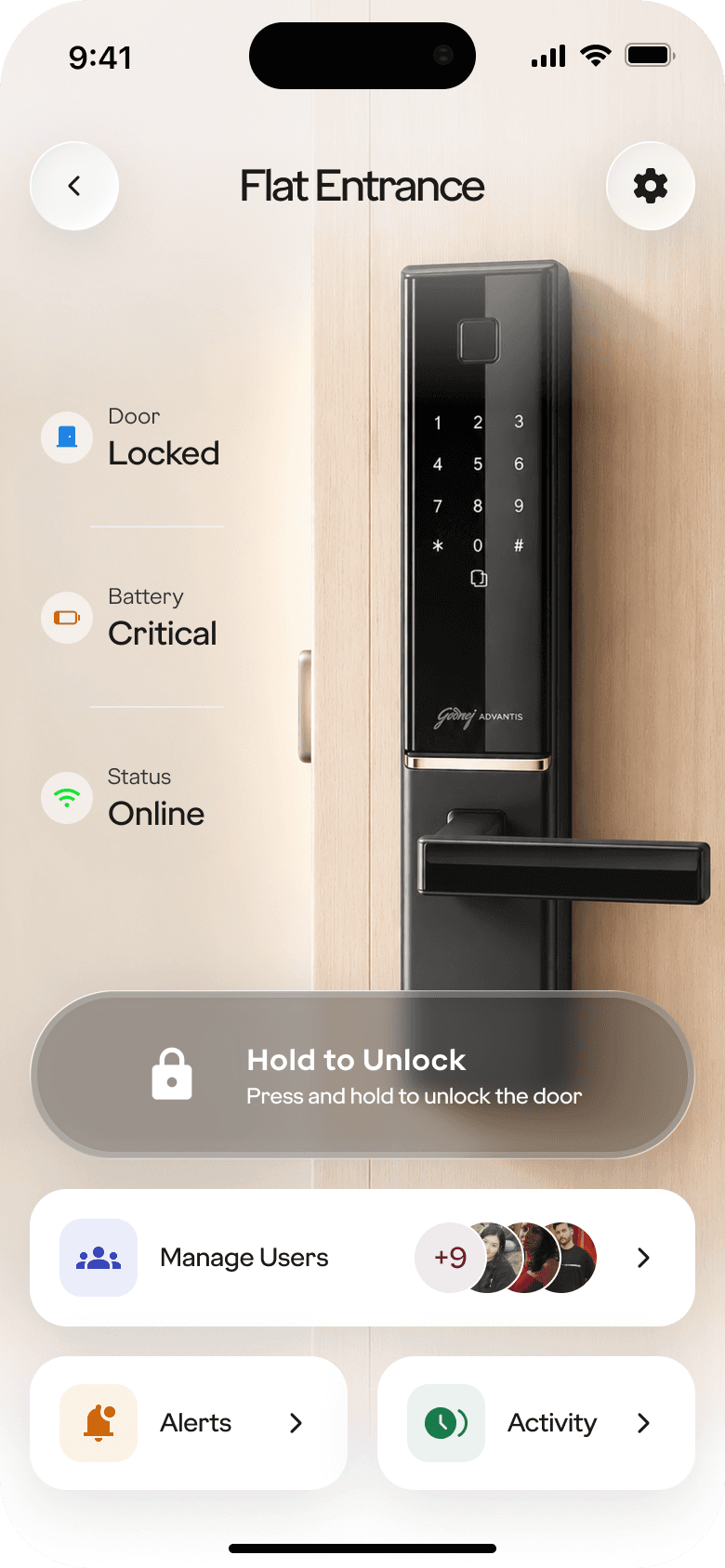
Lock settings from the device page.
Manage Users sits on the lock itself.
Alerts and activity, scoped to this lock.
Screen: a device-page exploration (“Flat Entrance”). Groups: lanes C.17–C.29 of the wireflow.
Decision 03
State first, then the action
Problem
Reviews named delayed notifications, inaccurate lock status and connection failures. The strategy’s first two questions are “Is my door secure?” and “Is my lock connected?”
Decision
Wherever a lock appears, its door, battery and connection status come before its controls. The wireflow also covers the states around them: attention, battery critical, offline, out of range and sync failures.
Why it fits
An unlock control is only useful if people trust what it acts on. Showing state first answers the strategy’s questions before anyone has to act.
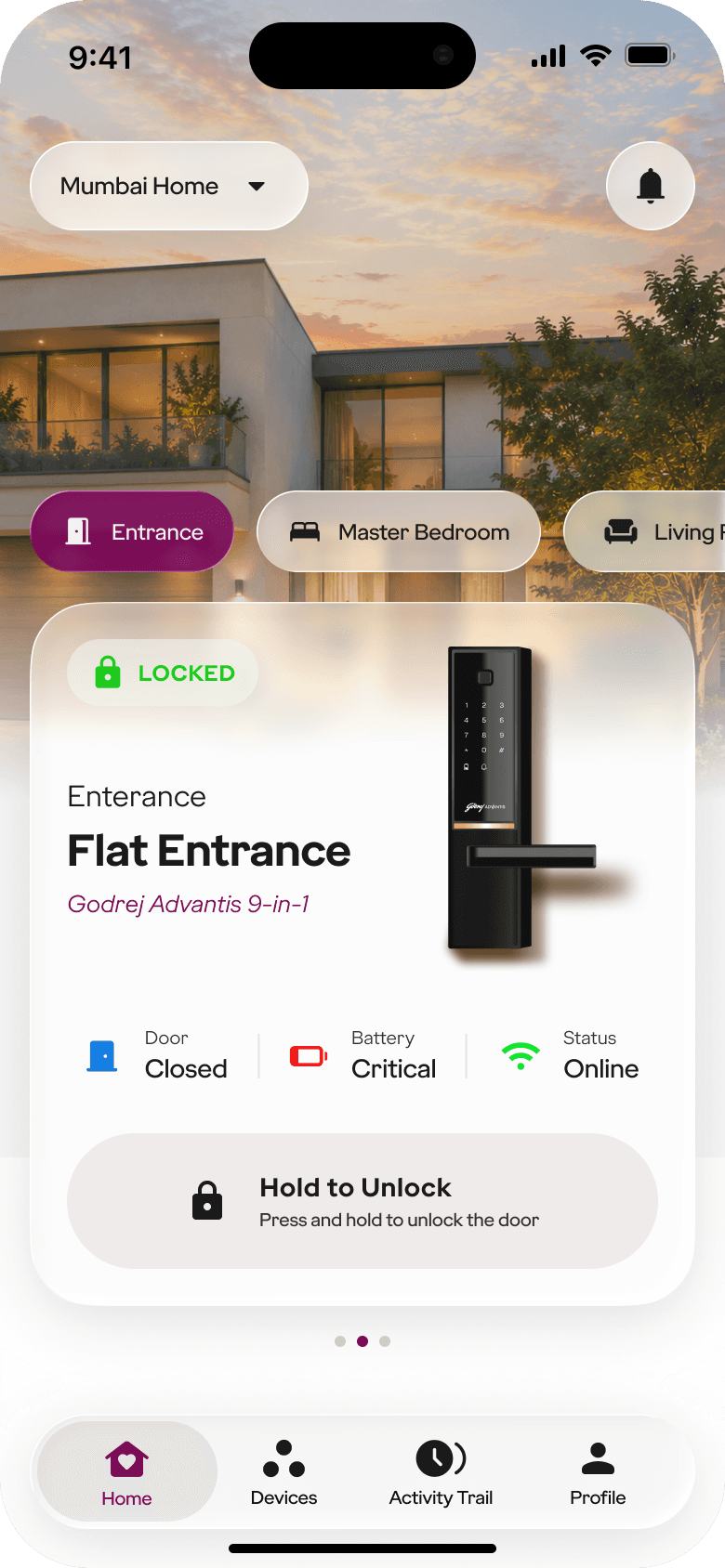
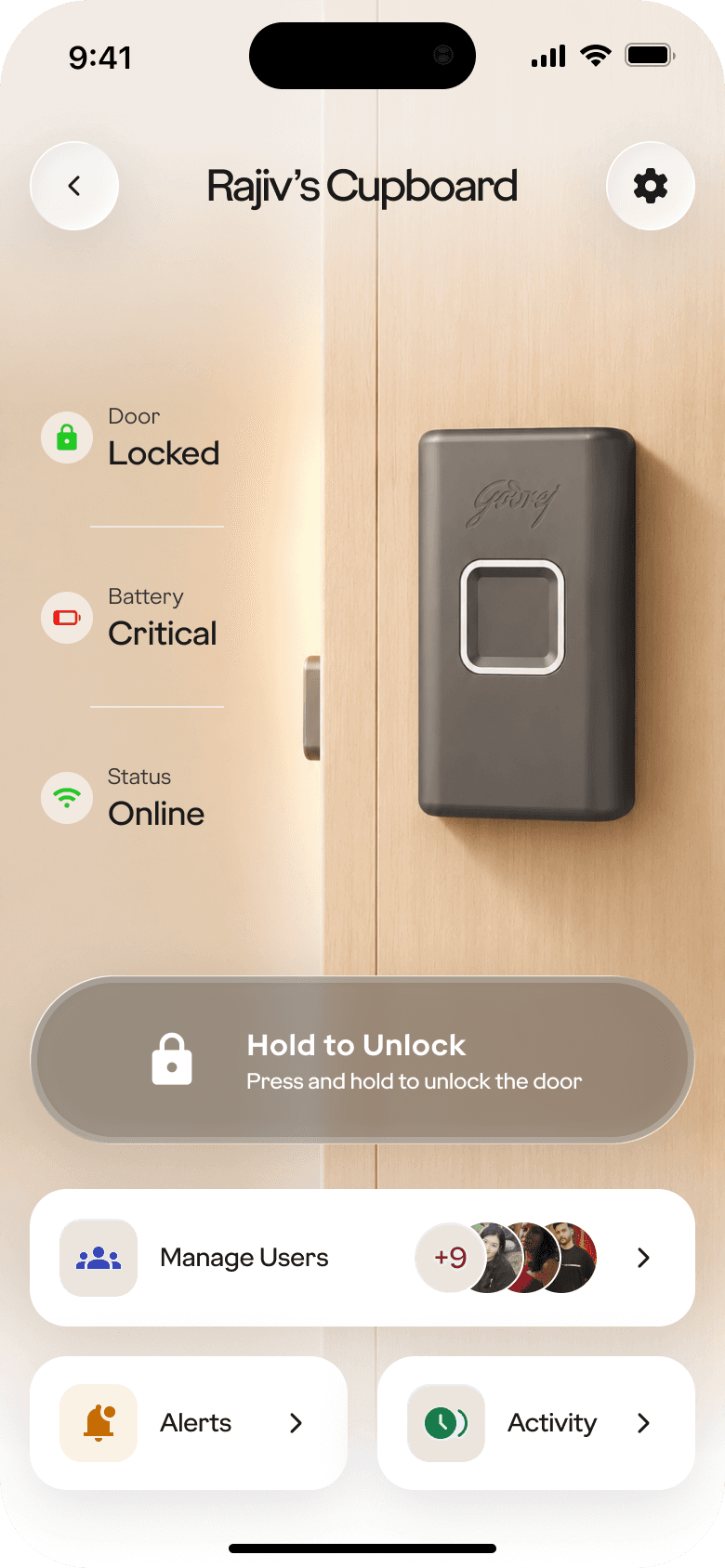
The lock card leads with its state: Locked.
Door, battery and connection, before any control.
Hold to unlock, so the main action isn’t a stray tap.
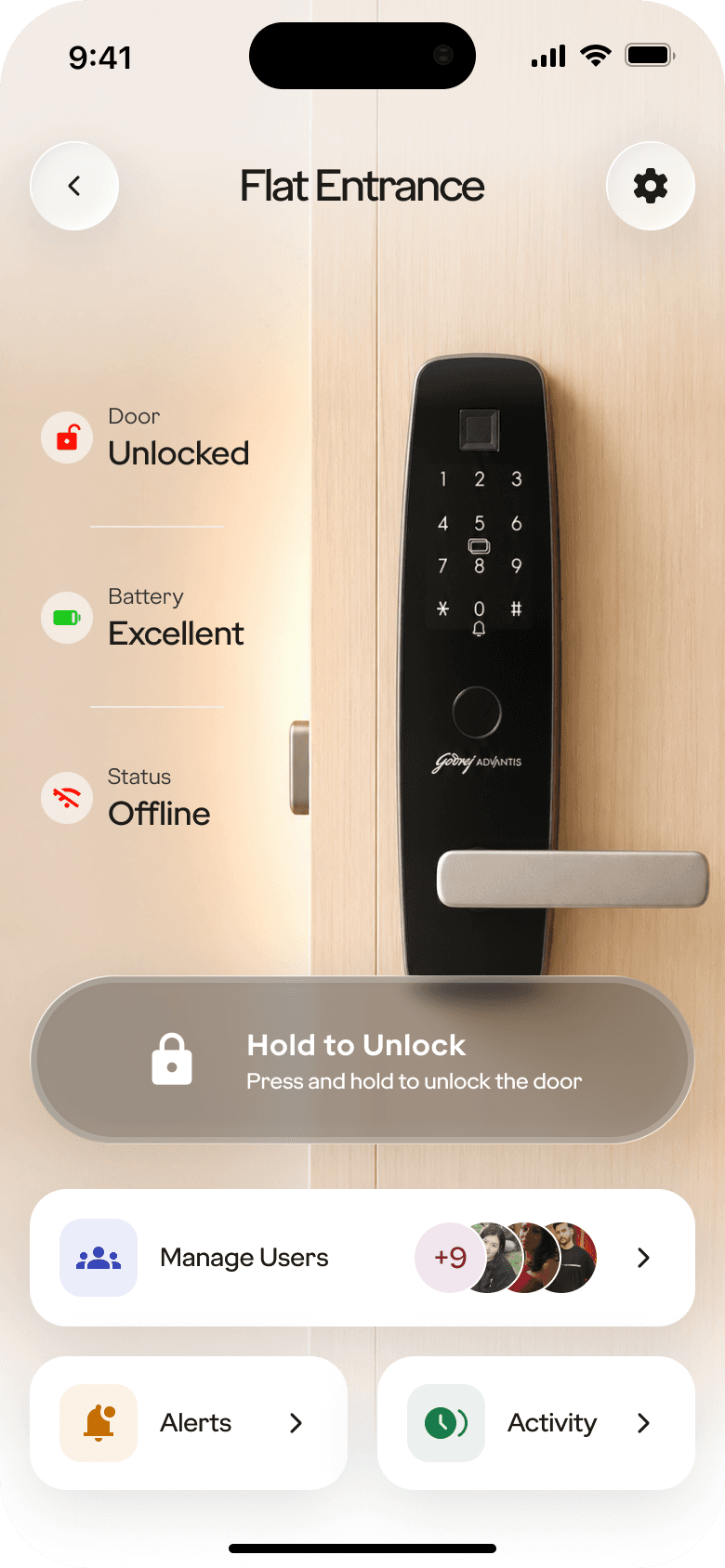
An offline lock says so on its own page.
States designed in the wireflow
Home
Attention
Battery critical
Offline
Loading
Lock
Unlocking
Out of range
Activity
Stale
Syncing
Sync failed
Device unreachable
UI: exploration. States: wireflow lanes B.03, C.16, D.01
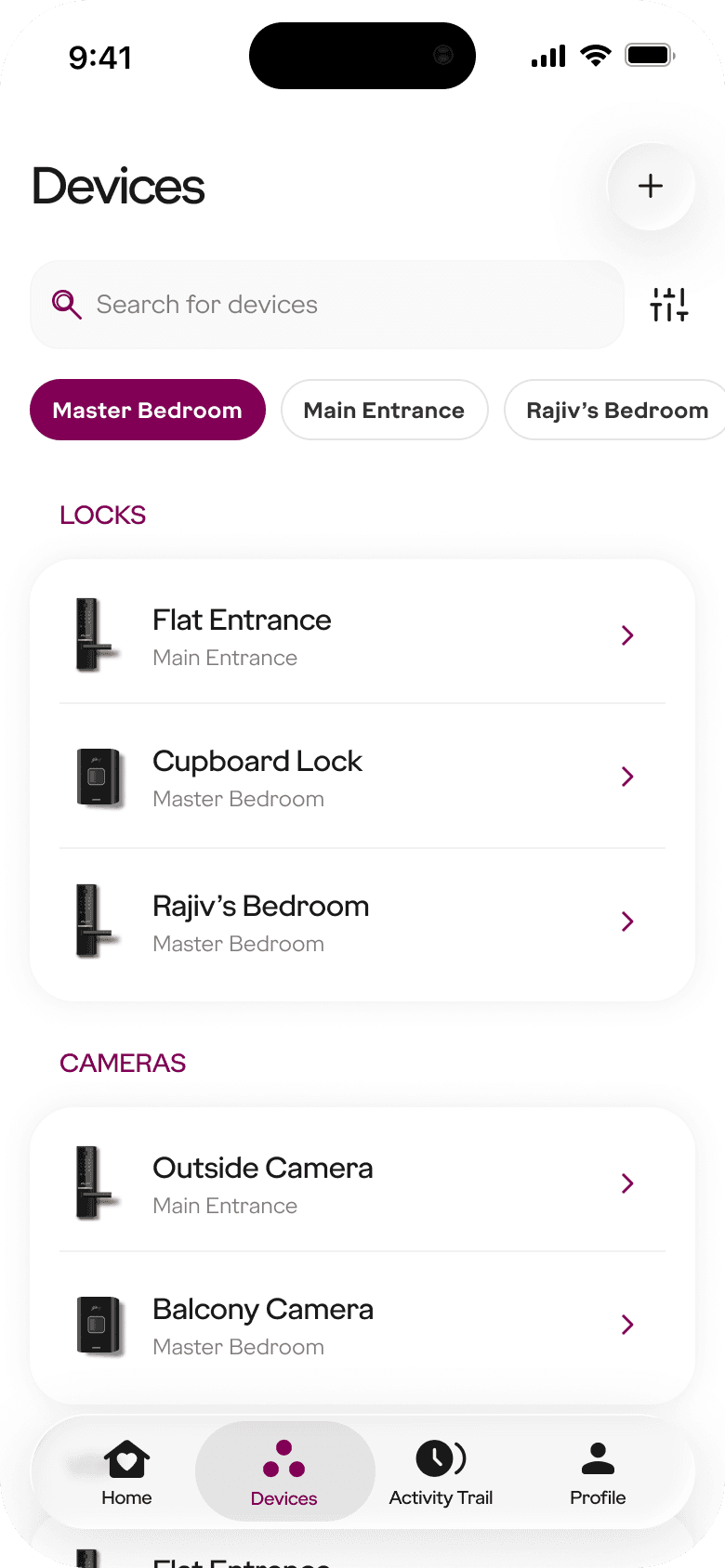
Screens: home and device-page explorations. They show the direction, not a final design.
Decision 04
Grow by device category, not by new apps
Problem
The roadmap adds cameras, video door phones, sensors and lighting, then access control, architectural fittings and enterprise. A new app for each would repeat the fragmentation this project set out to fix.
Decision
New categories plug into places that already exist: a type in Select Device, an onboarding flow under Devices, an accessory on the lock or the reserved Future Extensions area in Settings.
Why it fits
The scope deck plans growth in horizons, each one adding capability “without disrupting the layer below it”. Each phase extends the platform rather than rebuilding it.
Horizon 1 · Foundation
Smart locks · door locks · IoT9 consolidation
In the v101 wireflow
Six lock models
IoT9 mapped in full; five placeholders
Lock control, users, access
Control pane and lanes C.13–C.29
Horizon 2 · Expansion
Cameras · video door phones · sensors · smart lighting
In the v101 wireflow
VDP, VDP module, VDB
Onboarding mapped
Camera
Onboarding mapped; About says “coming soon”
Sensors, smart lighting
“Coming soon” in About
Horizon 3 · Ecosystem
Access control · architectural fittings · enterprise estate
In the v101 wireflow
Enterprise
Facility management, multi-site, enterprise admin
Access control, fittings
Not in the v101 wireflow
Horizons from the scope deck (slide 32). “In the v101 wireflow” shows where each category stands in the IA. Cameras are described differently in the About screen and in the onboarding flows.
05
Selected UI explorations
Early UI, shown as exploration.
Two sets of screens show where the visual direction was heading. Neither is final or tested. The onboarding set is marked “recommended” in the project file, and its welcome screen uses the name “Advantis Home”.
Onboarding
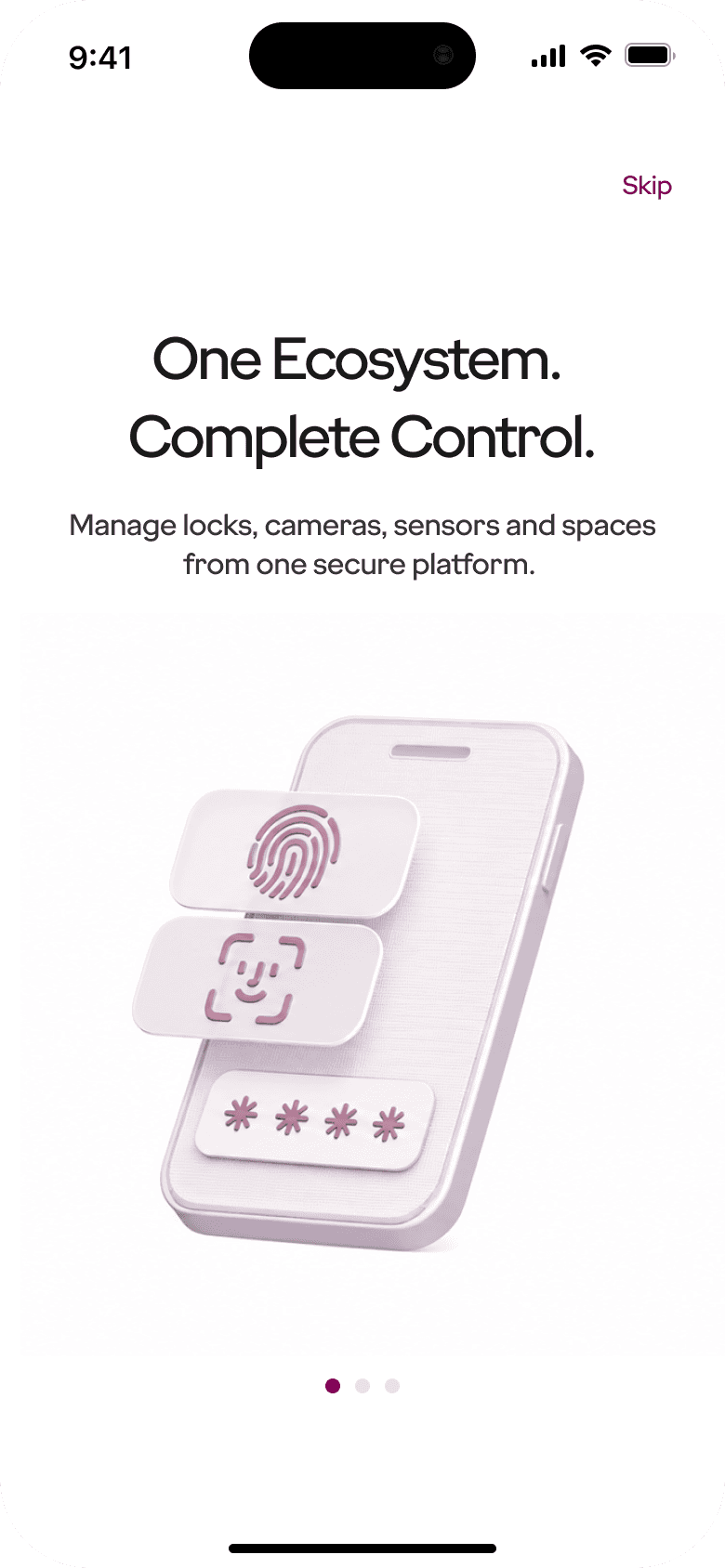
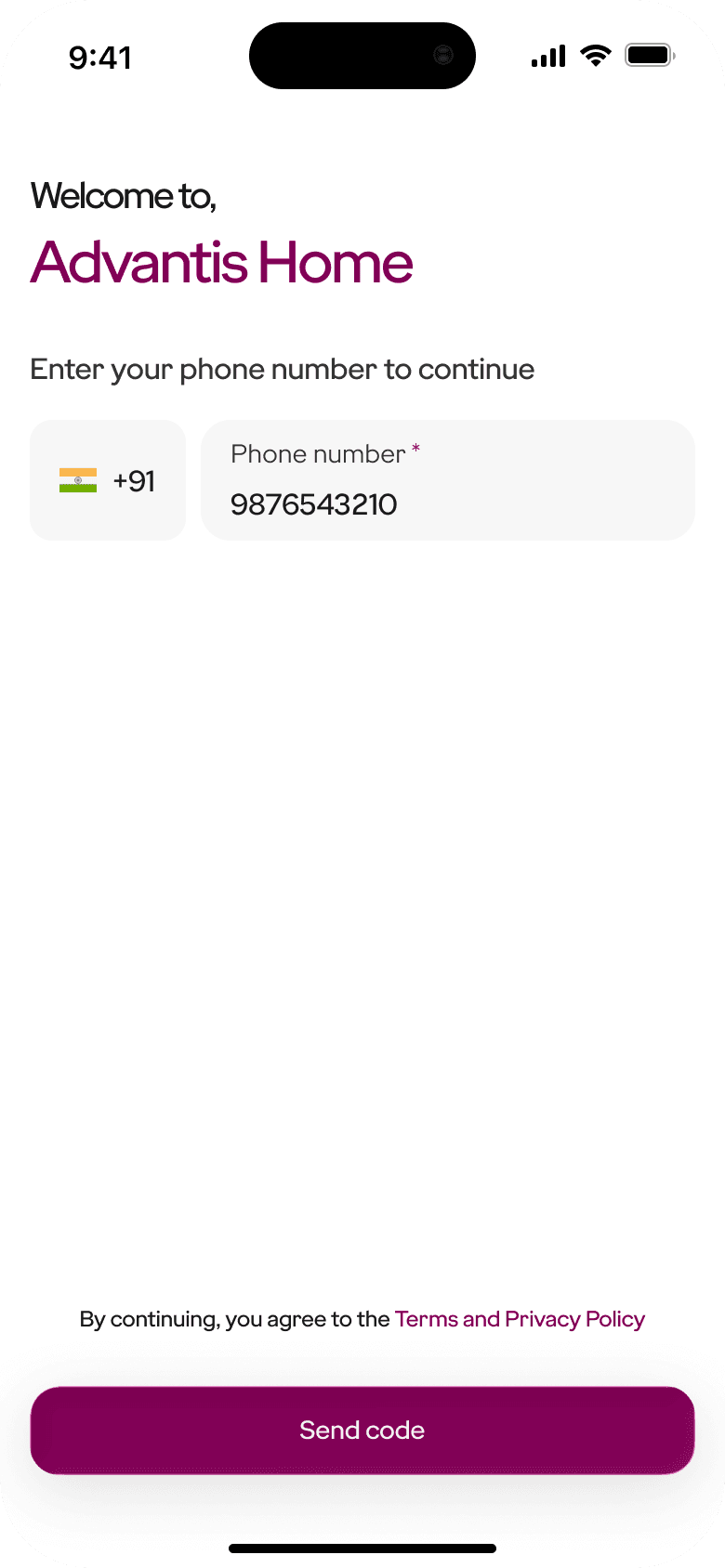
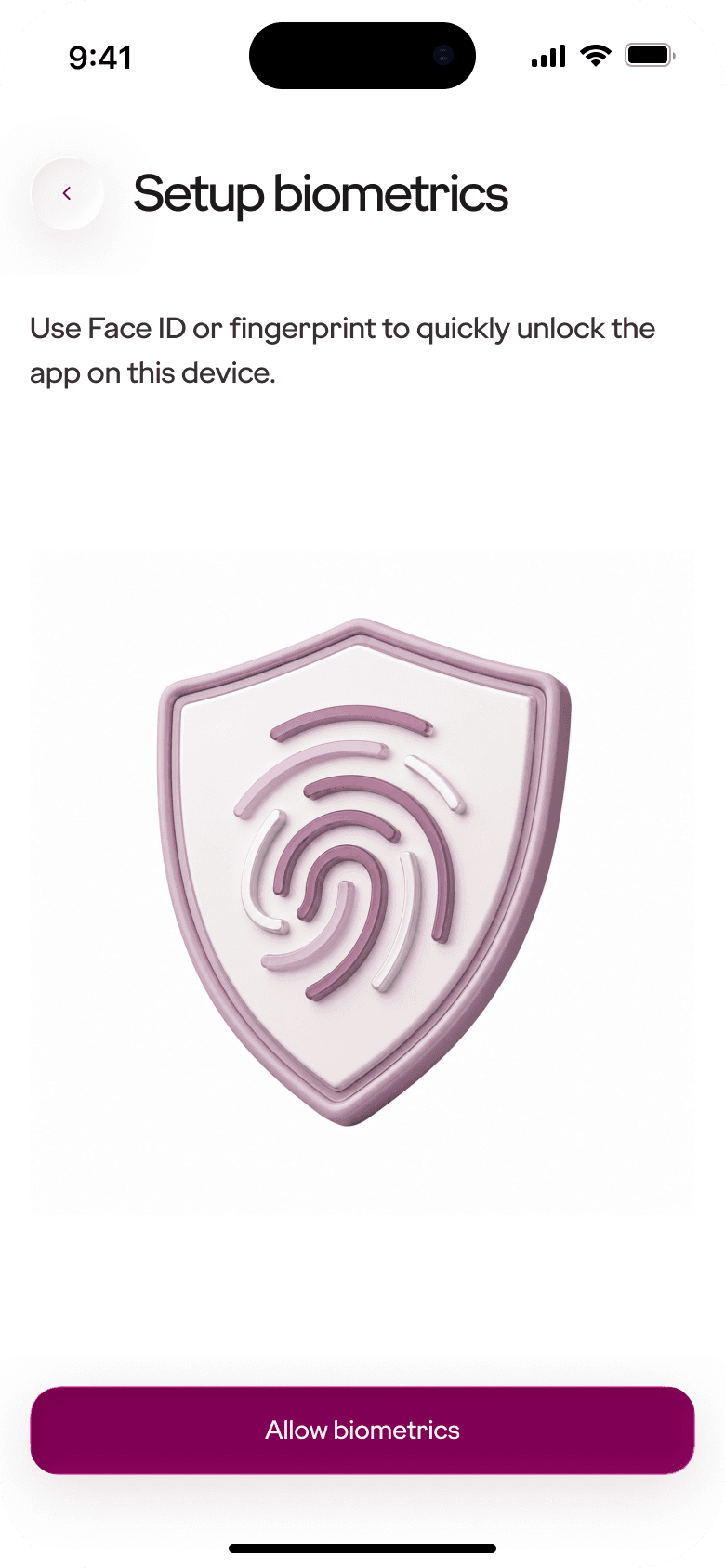

One value statement: “One Ecosystem. Complete Control.”
Phone number first; Send code activates once a number is entered.
Biometrics to unlock the app quickly on this device.
A failed-OTP state with a clear retry.
Home and device pages

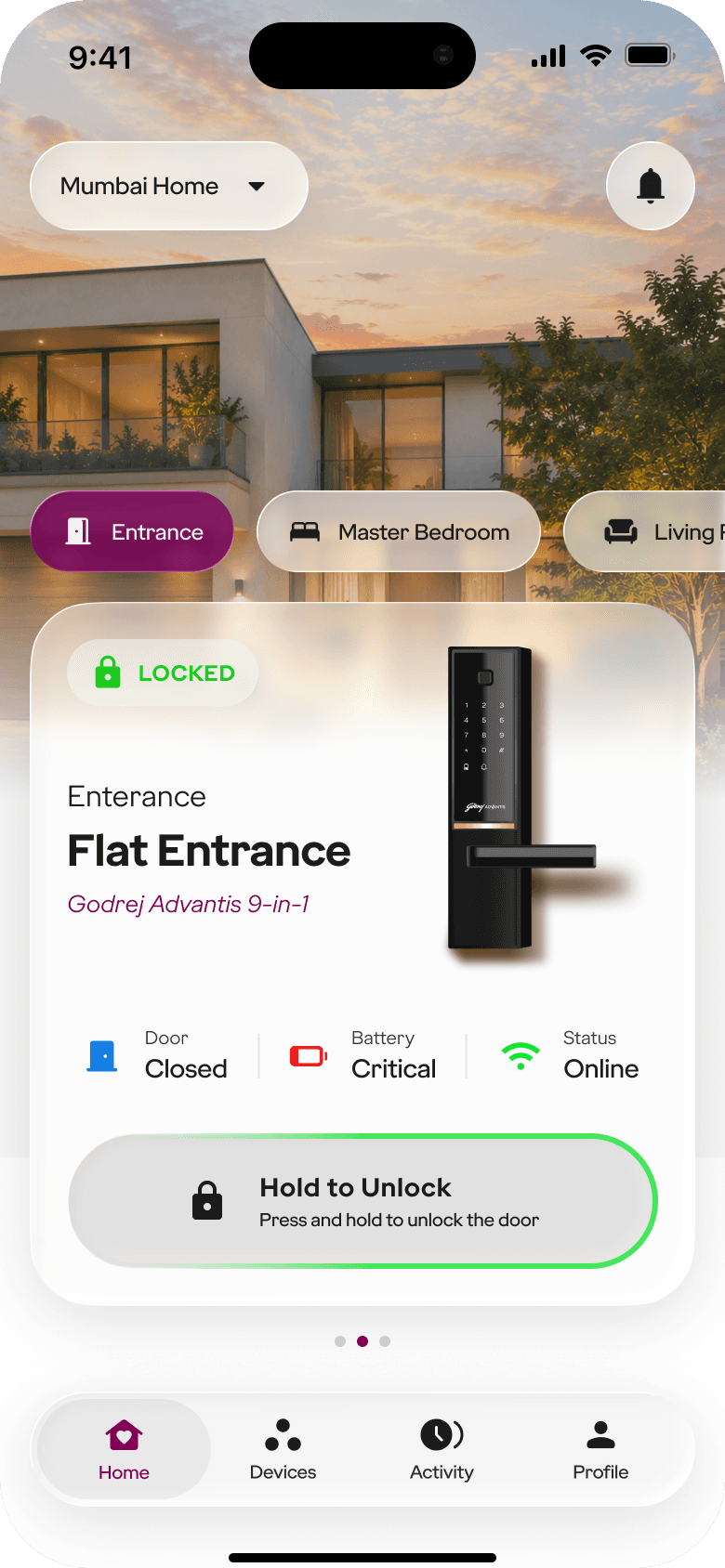
A personal welcome on launch.
Hold to unlock shows progress as it’s held.
Devices grouped by type, filtered by room.
A cupboard lock uses the same page as a door lock.
06
Scope, outcomes and limitations
What this work is, and what it isn’t yet.
The work so far is an IA, a research synthesis and early UI. There are no usability results, metrics or launch data, so this section covers scope and open questions rather than impact.
A complete IA wireflow
518 screens, sheets and states and 1,044 transitions across 52 flows, with empty, error, offline and recovery states alongside the main paths.
A scope and research base
A 36-slide product scope deck, an analysis of 28 customer reviews, an experience strategy with eight pillars and a competitor review.
Limitation
Not yet a full design
Only the IoT9 lock is mapped step by step; five lock models are placeholders. The UI covers onboarding and the home and device pages, as exploration. No usability testing is recorded.
Recommendation
What to measure next
Time to add a first lock; how often pairing and sync need a retry; support contacts about users and access; store ratings compared with the issues in the 28 reviews.
Open questions
01
Seven nodes or four tabs
The scope deck and the wireflow differ. This case study follows the wireflow, which is the more detailed of the two.
02
Cameras
About lists cameras as “coming soon”, but camera onboarding is mapped in full.
03
Product name
GLAFS in the IA and scope deck, “Advantis Home” in onboarding, Godrej on the home UI.
04
Tab bar
The UI explorations use Home, Devices, Activity Trail and Profile; the wireflow uses Home, Devices, Activity and Settings.
07
Reflection
When three apps become one, the IA is the product: it decides what is shared, what stays specific to a device and what waits.
What I learned
Apps don’t merge by stacking their menus. The useful questions were what belongs to a lock, what belongs to a home and what belongs to the platform.
A constraint that shaped it
The roadmap was wider than the build. The IA had to make room for planned categories without pretending they exist, so future items carry a planned or proposed label.
What I’d validate next
Whether people look for users and access under the lock, with a tree test of the four tabs, and how the device-first start works for someone with several locks and homes.