
Case study
Smart home · Agent app
Keus: Simplifying Smart Home Installation
A redesign of the Ops app that Keus installation agents use on site. With it, they connect the gateway, build the home’s floors and rooms, pair and configure every device and set up scenes, room by room.
Product
Keus Ops app, for installation agents (not the consumer app)
Platform
Mobile app
Scope
Gateway, rooms, devices, groups, scenes, Bluetooth pairing and site search
Designed at
Binaryveda


Landing, room summary and adding an appliance, from the final designs.
01
The challenge
One home, many devices, one visit to set them up.
A Keus home runs on gateways, smart consoles, lights, curtains, fans, sensors and cameras. Agents set all of it up on site with the Ops app: connect the gateway, build floors and rooms, pair each device, configure its appliances, then group them and set up scenes.
The problem
The previous app made agents work through a fragmented, demanding setup. The redesign had to make a long, conditional installation easy to follow and hard to get wrong.
Where the complexity comes from
29 kinds of device
Agents work with 29 device types, each with its own ports and supported appliances.
Hardware in the loop
Steps depend on physical hardware: gateway IP and QR checks, Bluetooth pairing, ports and firmware.
Operations can partly fail
Configuring a gateway, an appliance or a scene runs through many steps, and any one of them can fail.
What the design had to respect
Three ways in
Agents start from On-site, Site Search or Bluetooth Mode, depending on the job.
A fixed structure
Floors hold rooms, rooms hold sections. Every floor gets a default Home room and every room a default Main section.
Irreversible actions
Flushing a room moves all its devices to Home and deletes its sections and groups. It can’t be undone.
A consumer app downstream
A mirror button opens the consumer app, so agents can check that their changes show up for the homeowner.
02
The installation workflow
Set up the site once, then repeat for every room and every device.
Mapped from the final screens. The markers show where agents make decisions, where the flow changes by device, where work repeats and where things can fail.
Once per home: the site
01
Log in with a phone OTP
02
Choose a mode: on-site, search or Bluetooth
03
Check the gateway IP, then its QR code
04
Configure the main gateway
05
Create floors and rooms
For every room, and every device in it
06
Pair devices into the room
07
Open the device: summary, hardware, firmware
08
Add appliances: type, port, settings
09
Create groups
10
Set up and sync scenes
Steps 6 to 10 repeat for every room, and steps 7 and 8 for every device. The room summary tracks how far each room has got.
Decision point: which mode to start in; which appliance type and port to use.
Changes by device: 29 types, each with its own ports, appliances and settings.
Repeats and needs context: many rooms, many devices, one checklist per room.
Can fail: gateway configuration and scene sync run in steps that can fail separately.
03
Design principles
Four principles, read from the work.
01
Show the next relevant action
Buttons stay inactive until the input is valid, and empty states offer one clear next step.
Seen in: Check IP, Add Appliance, Set Up Scenes
02
One pattern, any device
Every device type opens to the same tabs and the same three-step appliance flow.
Seen in: strip lights, door lock and smart console flows
03
Keep the screen and the hardware in step
Identify lights up the real device, Ping checks that it responds and LED legends explain what the gateway is doing.
Seen in: device cards, gateway configuration
04
Make progress and failure visible
Rooms show setup progress, long operations show their steps and only the failed part needs a retry.
Seen in: room summary, door lock setup, scene sync
04
Key design decisions
Four decisions for a long setup.
Each one answers a source of complexity in the workflow. All four show up in the final screens and the dev notes.
Decision 01
One pattern for every device
Problem
Twenty-nine device types each have their own ports, appliances and settings. Learning a new flow for every one would multiply the load on agents.
Decision
Every device opens to the same tabs: Summary, Appliances, Hardware Info and Firmware Health. Adding an appliance is always three steps: type, port, then name, section and icon.
Why it fits
Agents learn the pattern once. What changes between devices is the content of the steps, such as available ports and appliance types, not the steps themselves.
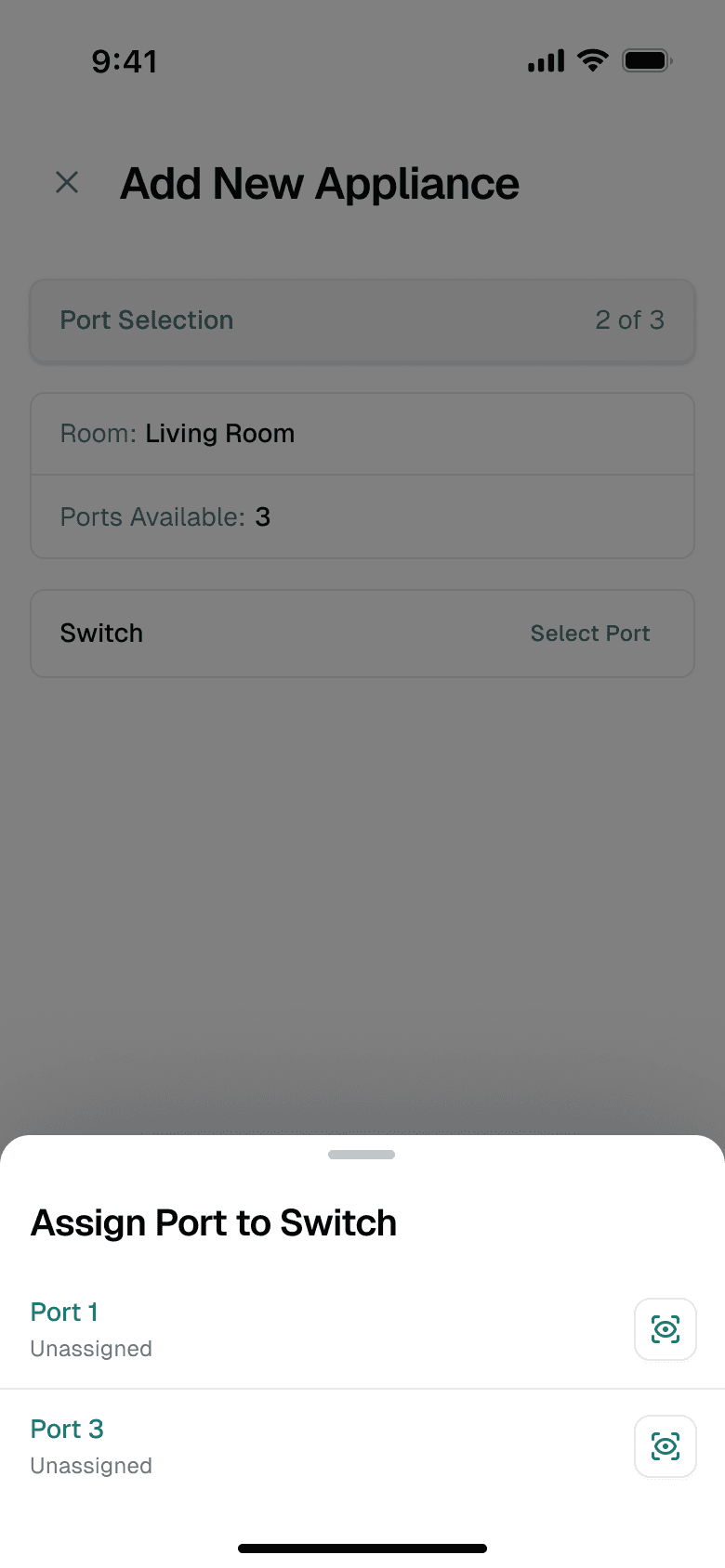

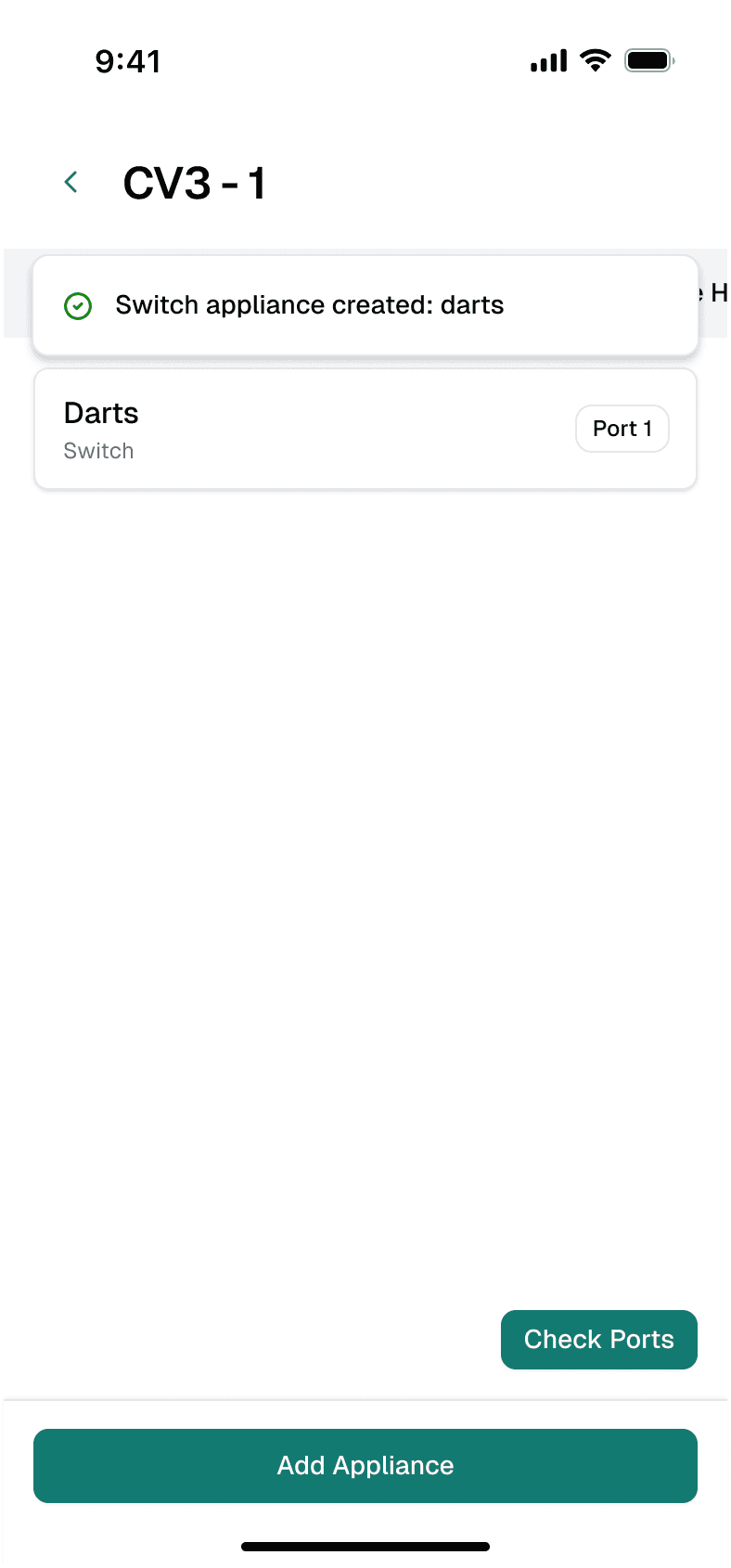
Step 1 of 3, always.
Room and free ports stay in view.
Each type says how many ports it needs.
Pick a free port; identify it on the device.
Name, section and icon last.
Confirmation names what was created.
Shown: a CV3 strip-light controller. The door lock, consoles, fans and curtains reuse the same tabs and steps.
Decision 02
Point at the hardware, not just the data

Problem
Agents work between a phone and a wall of real hardware. A list of IDs doesn’t tell them which box on the wall they are configuring.
Decision
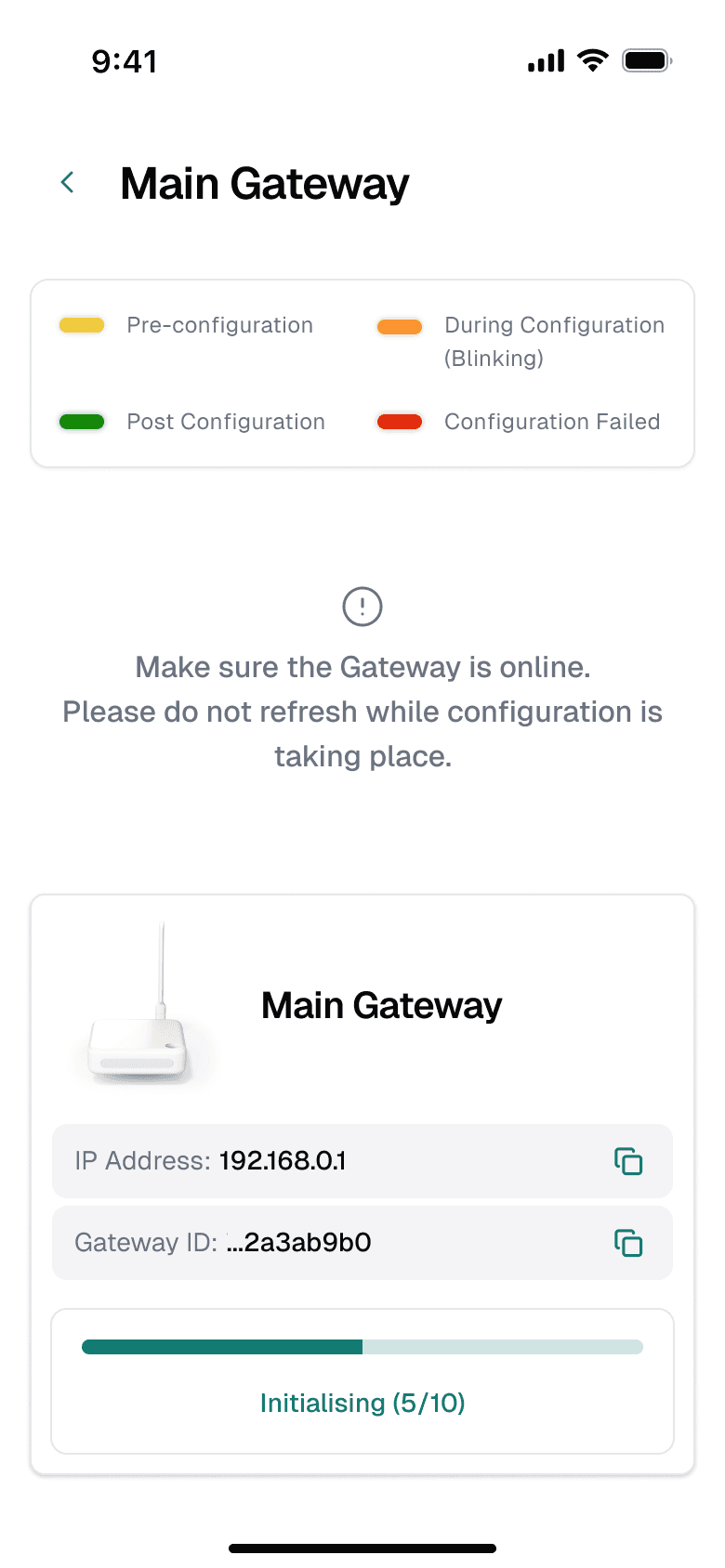
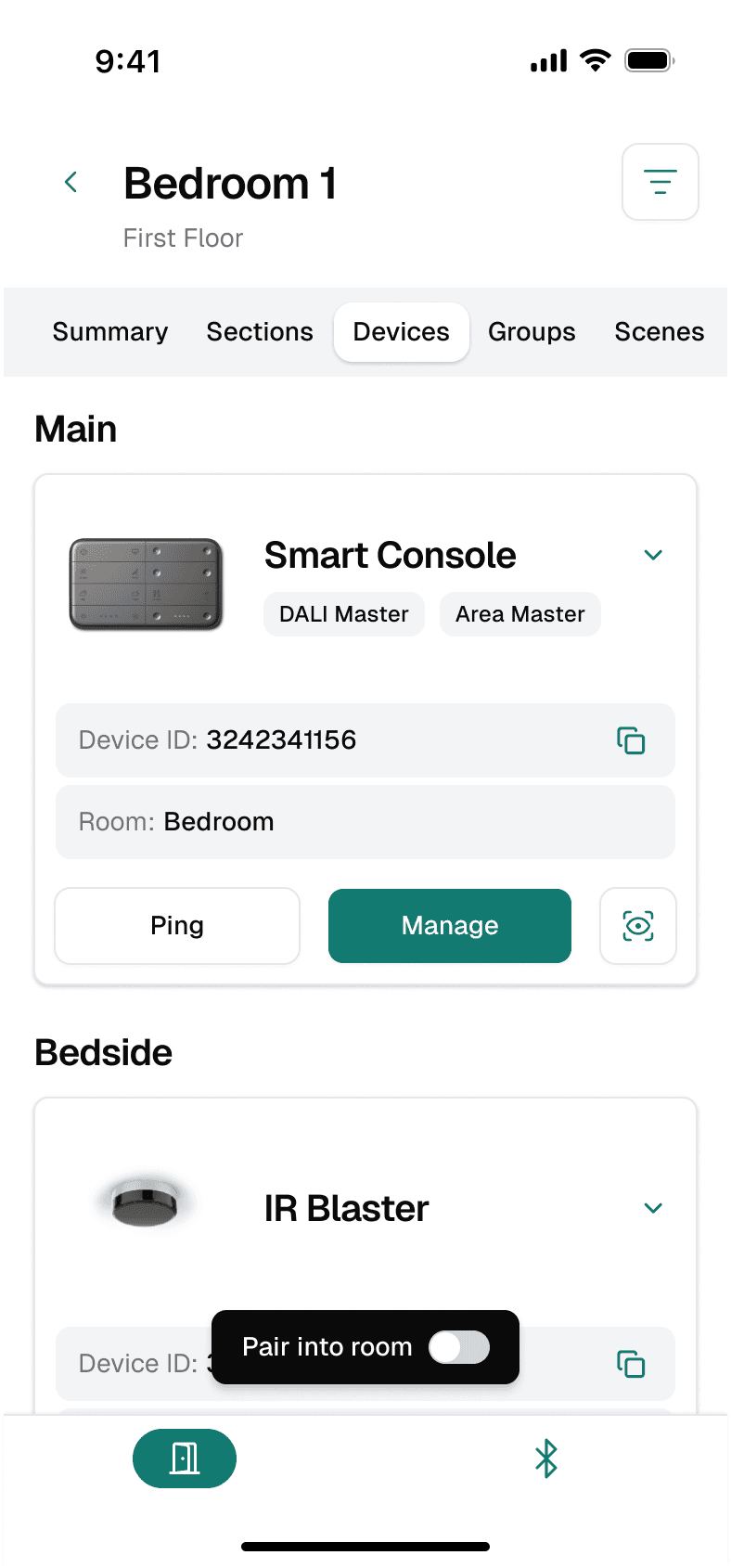
Identify lights up the physical device and Ping checks that it responds. While the gateway configures, its screen shows a legend of what the LEDs mean.
Why it fits
The agent can confirm the right device by looking at it, instead of matching serial numbers by hand.
LED legend matches the gateway’s lights.
Progress by stage: “Initialising (5/10)”.
Identify and Ping on every device card.
“Pair into room” from the room itself.
Signal strength while pairing over Bluetooth.
Decision 03
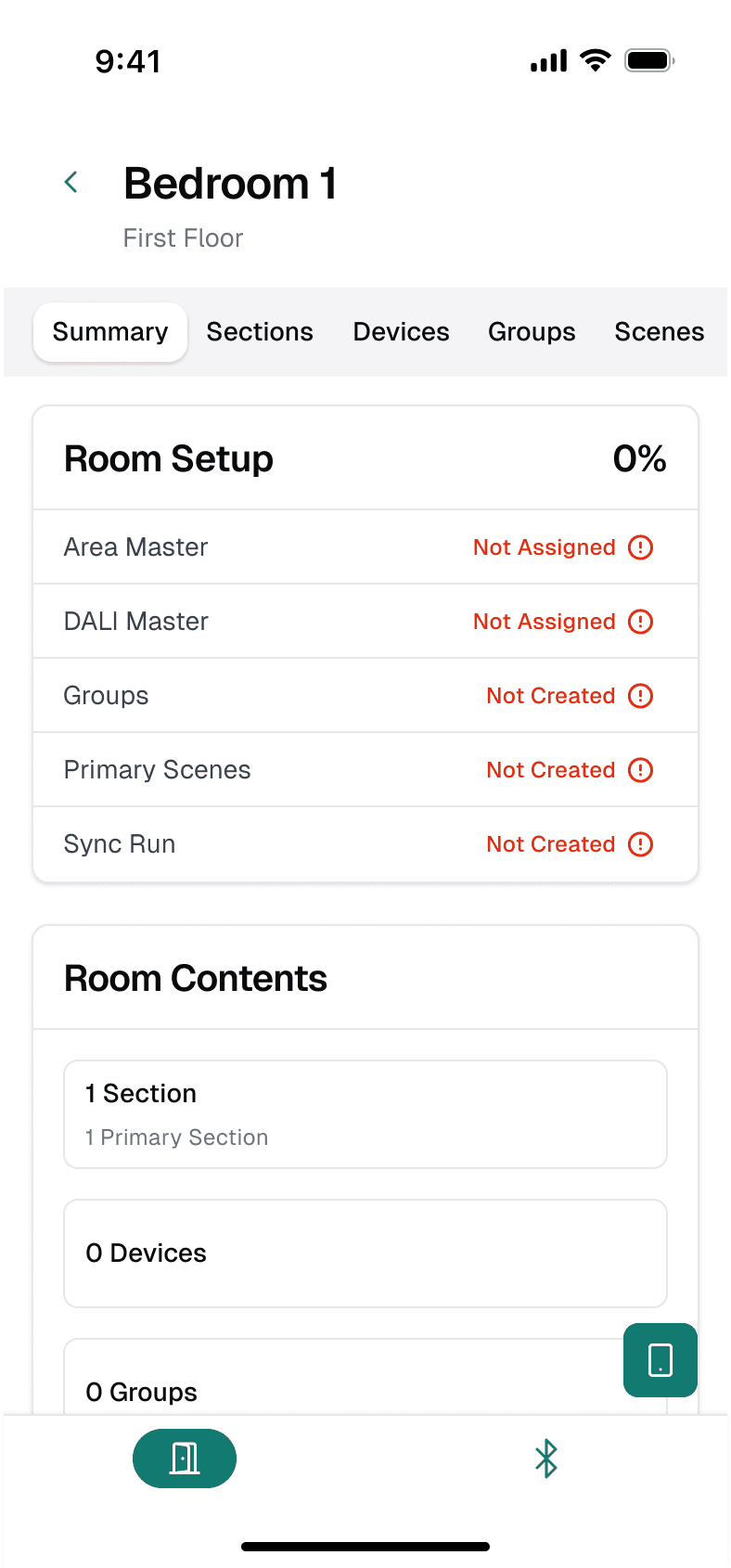
Give every room a setup checklist
Problem
A home has floors, rooms and sections, and each room needs masters assigned, groups created and scenes synced. It is easy to lose track of what’s left.
Decision
Each room opens on a Summary: a checklist of setup tasks with a percentage, and a count of what the room contains. Sections, Devices, Groups, Scenes and Room Activity sit in tabs beside it.
Why it fits
Agents can leave a room and come back to exactly where it stands. At 100%, the checklist collapses to just the percentage.
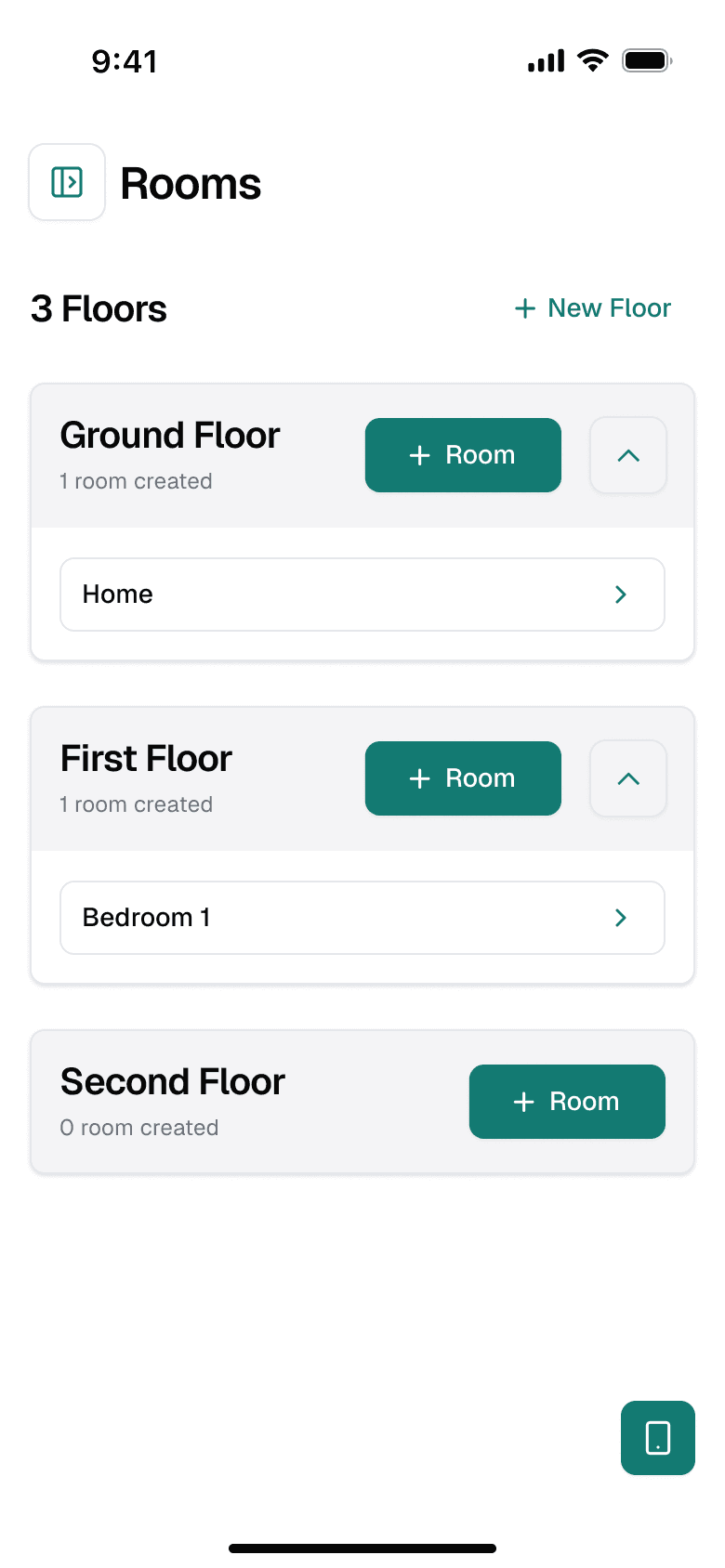

Floors first; each gets a default Home room.
One room, six tabs, Summary first.
Setup progress as a percentage.
Each task shows Assigned or Not created.
Complete rooms collapse to 100%.
Decision 04
Show every step, and retry only what failed
Problem
Configuring an appliance or syncing a scene talks to several pieces of hardware. If one step fails, starting over wastes the steps that worked.
Decision
Long operations show their steps and counts. Partial success is its own state, “6/7 steps have succeeded”, with Retry or Continue. Scene sync lists every step with its own Retry.
Why it fits
The agent sees exactly what failed and fixes only that, without redoing a whole configuration.
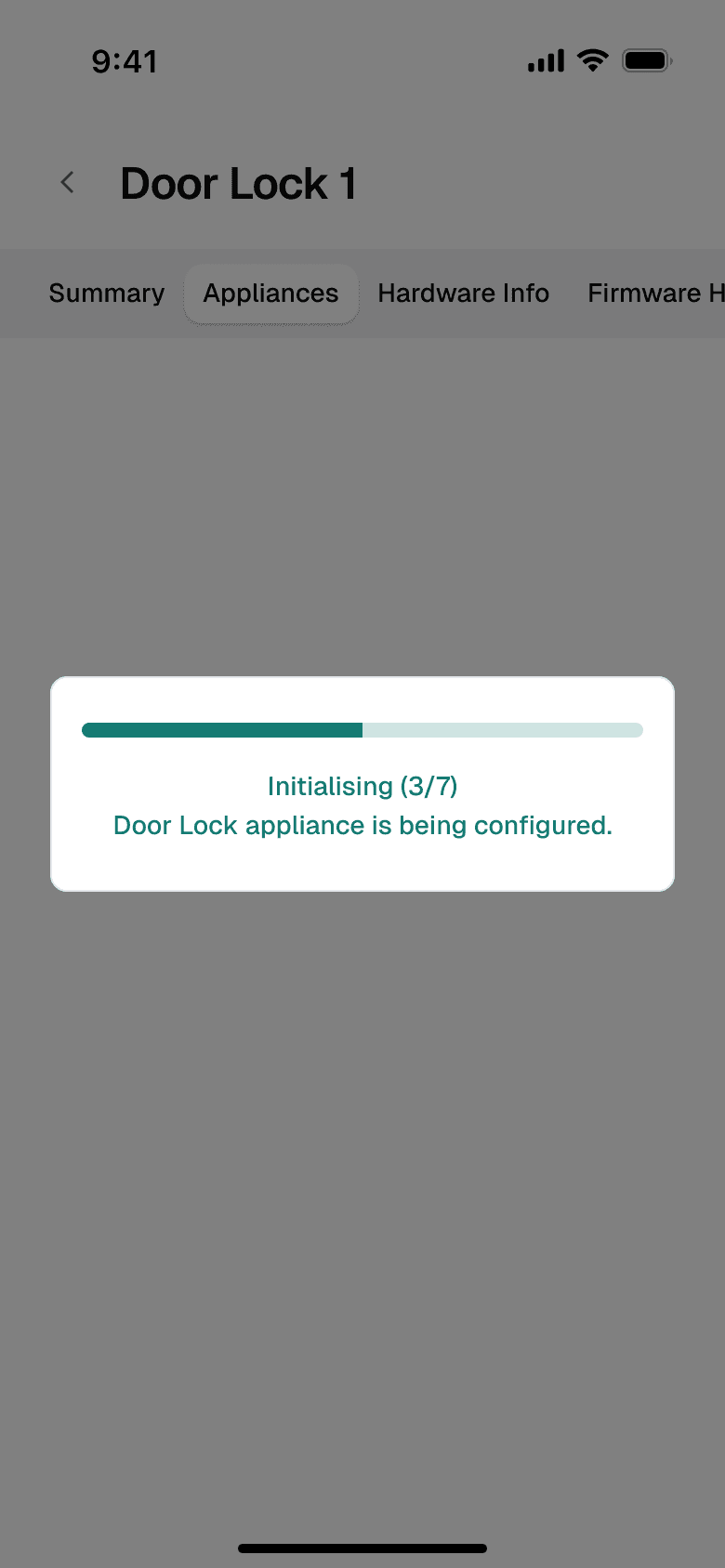

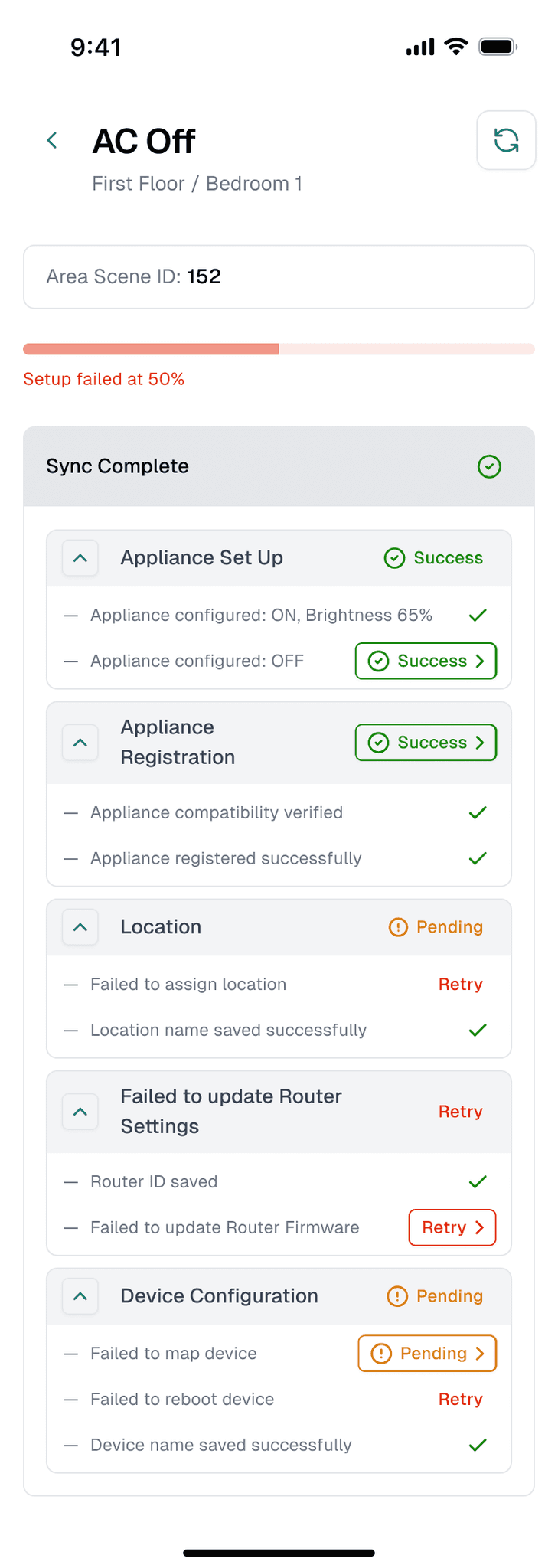

Progress counted in steps: “Initialising (3/7)”.
Partial success, with Retry or Continue.
Where a scene stopped: “Setup failed at 50%”.
Each sync step can be retried on its own.
Clear reasons, such as “AC not available”.


The same care for actions that can’t be undone
Flushing a room moves every device to Home and deletes its sections and groups. The agent types the room name to unlock it, then confirms a second time.
05
The final experience
From an empty site to a working home.
The main path an agent follows on site, in order. Each row is one stage of the installation.
Choose what to do today
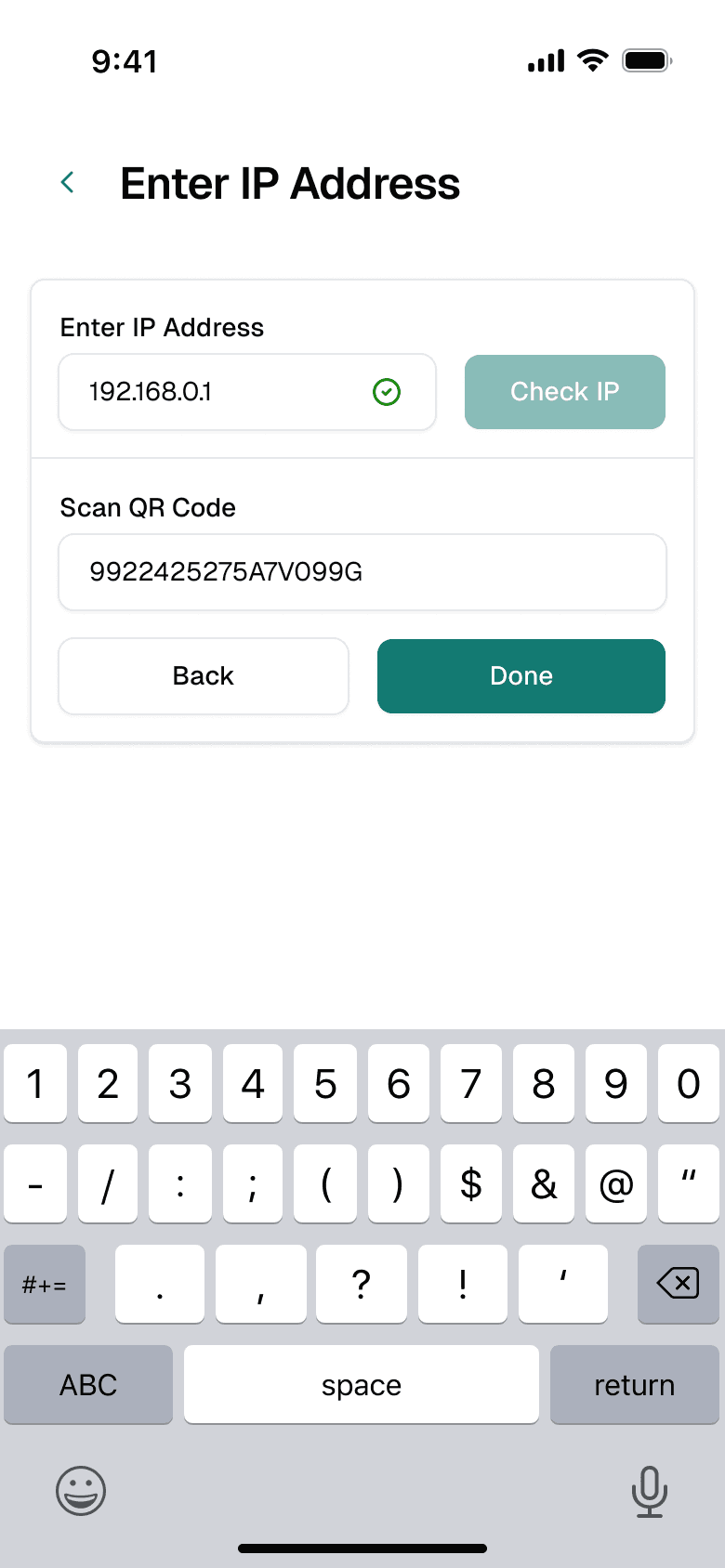
Check the IP, then scan the QR
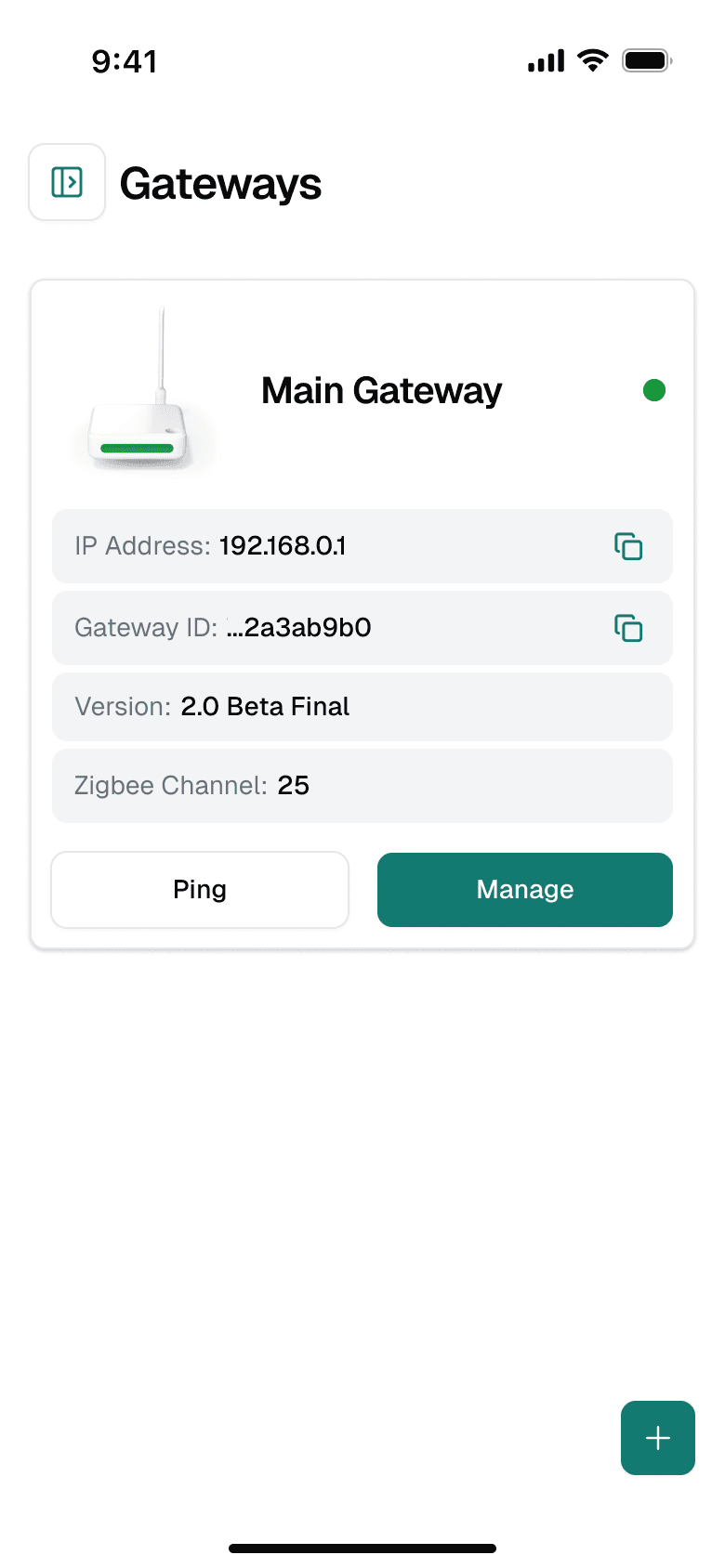
Gateway configured; ping or manage

The site menu: gateways, rooms, devices, users
Stage 1 · Connect the site: mode, gateway checks and configuration.
Floors and rooms
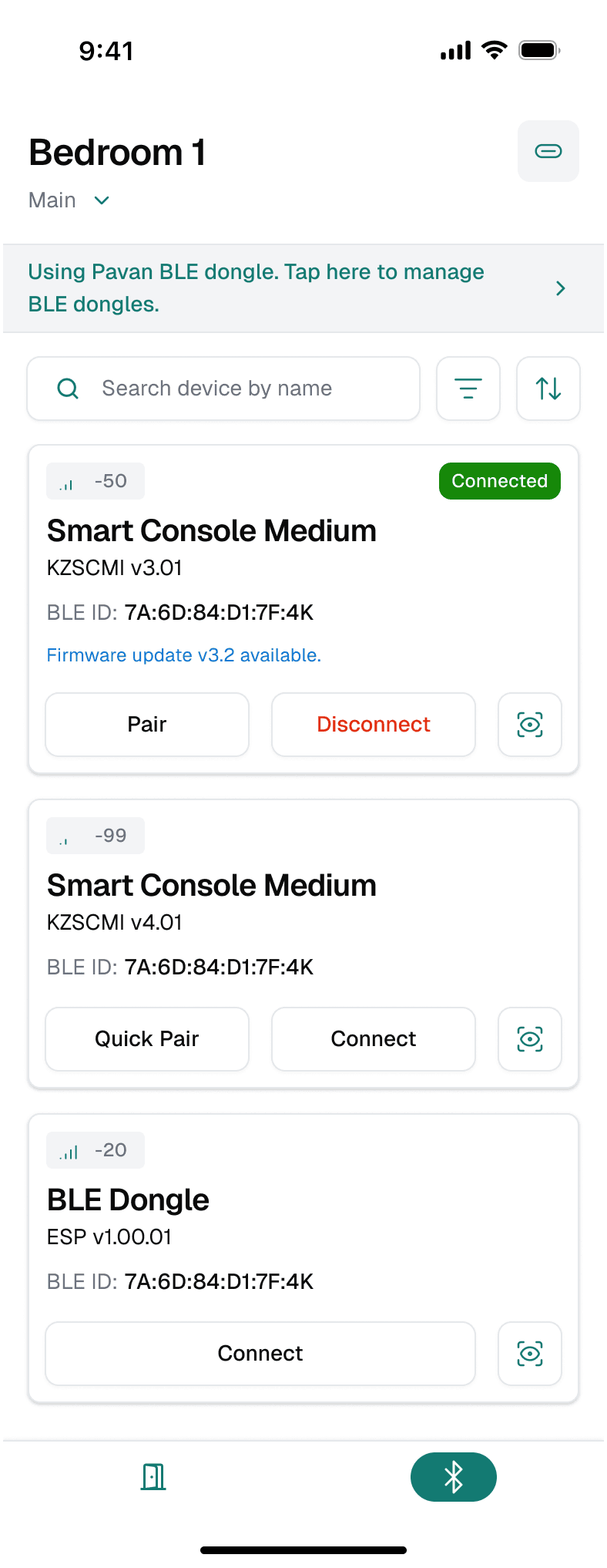
Pair over Bluetooth
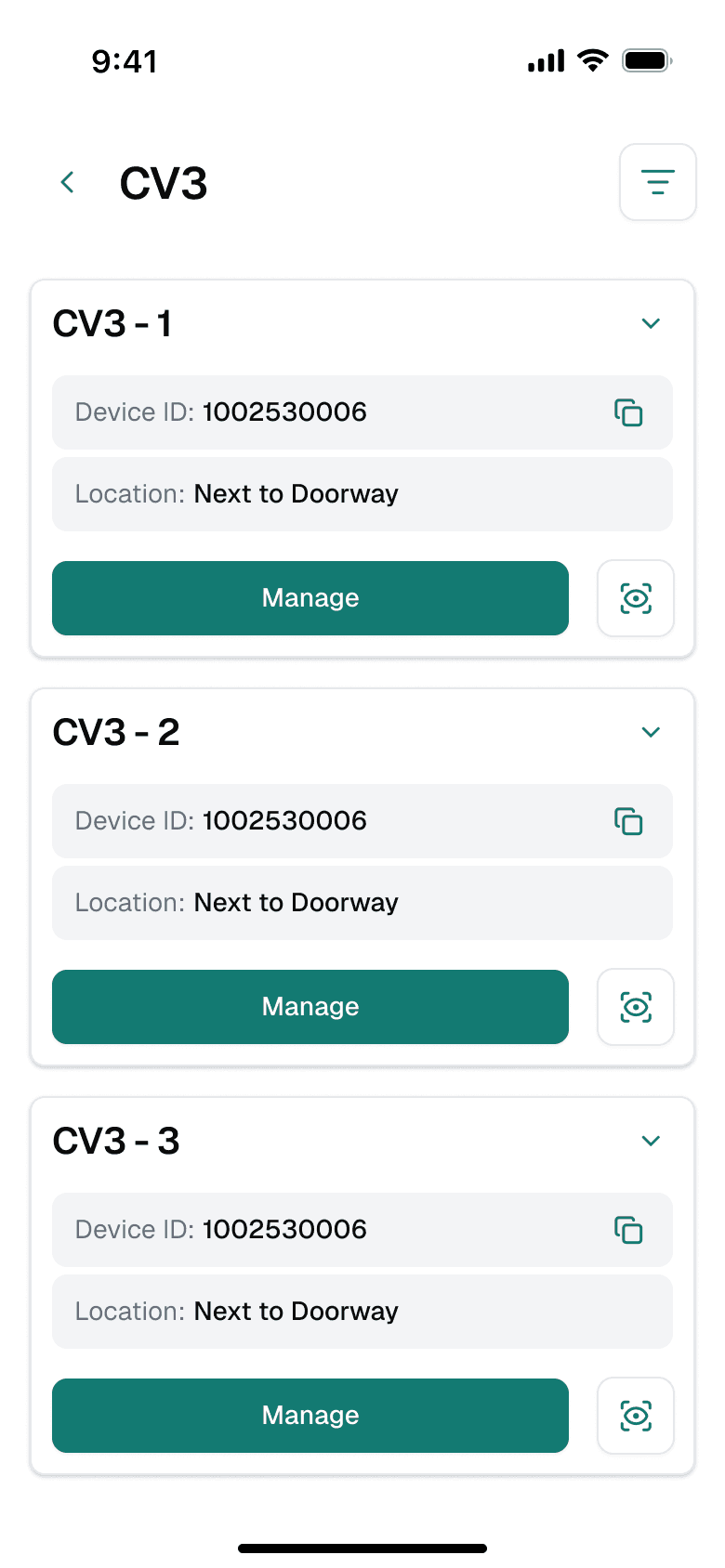
Devices of one type, with Manage and Identify

Device summary: ping, identify, update, reboot
Stage 2 · Build rooms and bring devices in.

Same pattern on a door lock: appliance created
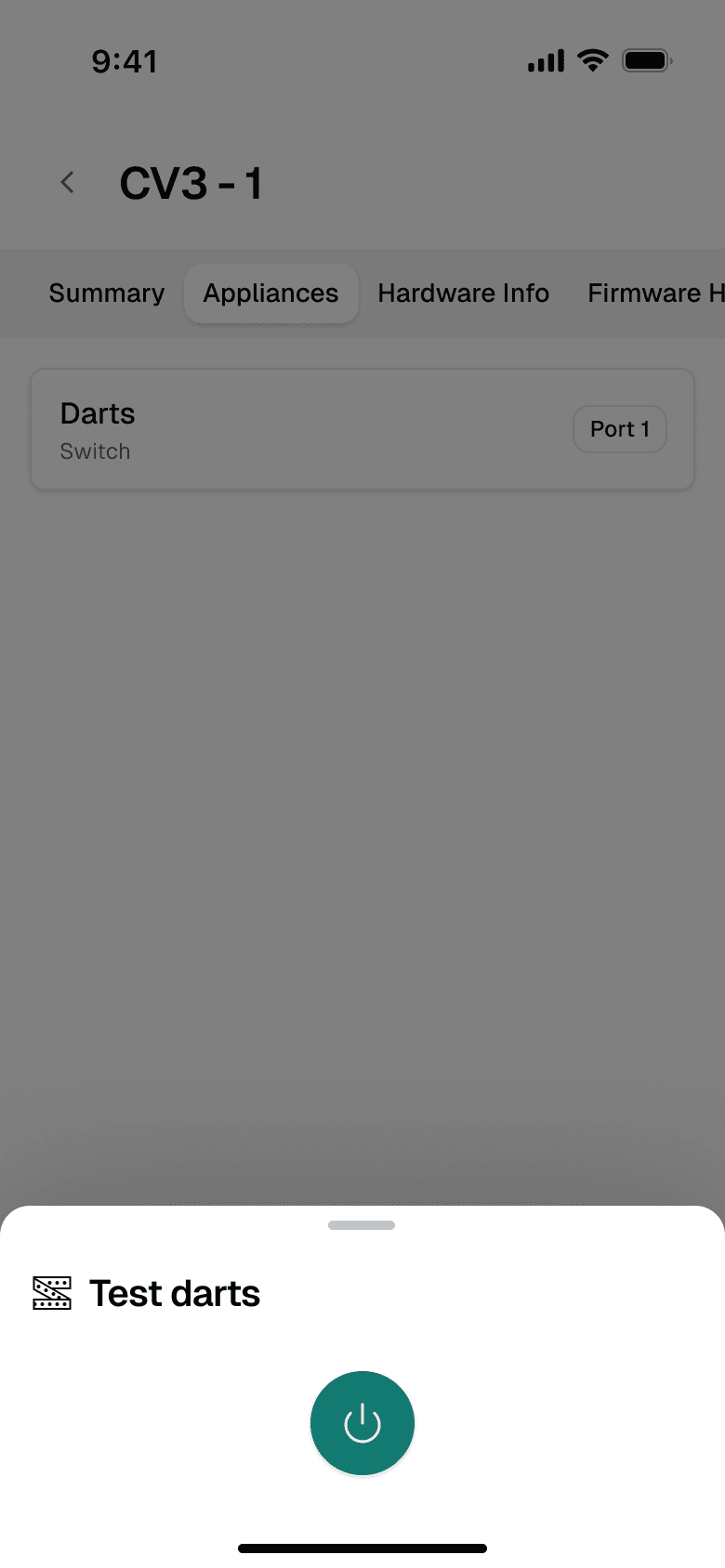
Test an appliance on the spot
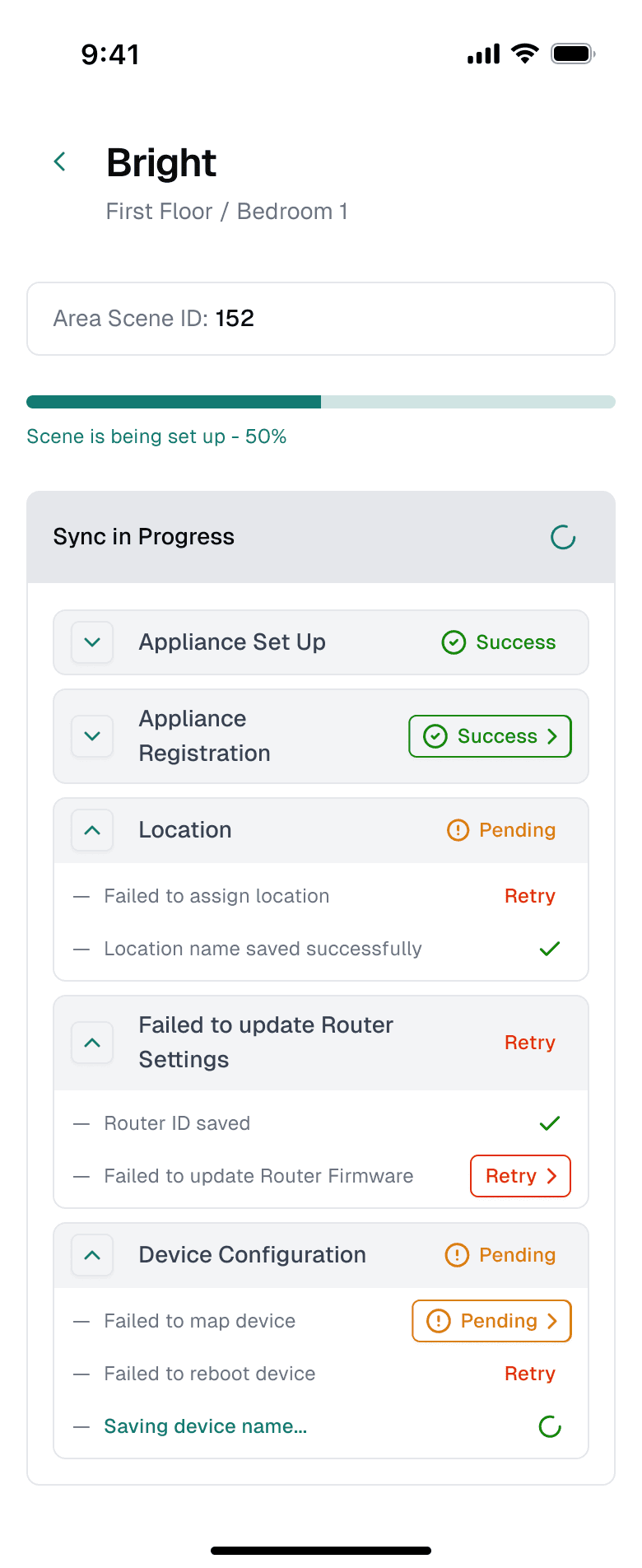
Scene sync in progress

Scene set up successfully
Stage 3 · Configure appliances and finish with scenes.
06
Outcomes
Design outcomes, not measured impact.
This project has no usability results or business metrics, so this section covers what the design delivers, not what it changed.
Design outcome
A workflow with a clear spine
Site, then rooms, then devices, then scenes. The structure matches the order of work on site, and each stage has its own module.
Design outcome
One device pattern, many devices
Shared tabs and a three-step appliance flow cover the device types in the designs, from strip lights to door locks and smart consoles.
Design outcome
Progress and recovery built in
Room checklists, step counts, partial-success states and per-step retries, with every failure state designed alongside success.
Recommendation
What to measure next
Time to complete a room, how often scene sync and configuration need a retry, reconfigurations per site and support calls during installation.
07
Reflection
In a tool for specialists, consistency is the feature: the 29th device should feel like the first.
What I learned
Agents aren’t browsing; they’re working through a job. The app helps most when it shows where they are, what’s next and what still needs fixing.
A constraint that shaped it
Every screen sits on hardware that can be offline, mid-update or half-configured, so failure and partial states needed as much design as success.
What I’d validate next
Time per room and where agents retry or abandon a step, from real installation logs, and whether the room checklist matches how agents actually work.